

You finish a week of client work and open your timer log. Somewhere in it are a kickoff call that ran long, a favor that turned into an hour of extra effort, and an afternoon spent tidying your own files. All of it is real time. Not all of it belongs on a bill.
Billable time tracking comes down to four moves: record each real work session, classify it against what the client’s agreement covers, review anything unclear before it counts, and prepare a summary of hours ready for billing. This guide shows how to set that up in a spreadsheet or any time tracker, then walks through a fictional two-client week so you can see where each entry lands. It ends with a reviewed summary. Writing and sending the invoice is a separate job.

What Makes an Hour Billable
Tracked time and billable time aren’t the same. Tracked time is every work session you record. Billable time is the part you can charge for under your agreement with that client. Between the two sits a review step that is easy to skip and expensive to get wrong.
It helps to keep four facts about each entry separate:
- Duration: how long the work actually took.
- Eligibility: if your agreement covers that kind of work.
- Status: whether anything about it is still unconfirmed, such as an approval.
- Invoice stage: whether it has been billed, and later, whether it has been paid.
A tracker’s billable checkbox is a sorting label, not permission to charge. It doesn’t settle any of those four facts on its own.
Hourly and Fixed-Fee Work
On an hourly engagement, hours covered by the agreement, at its stated rate and subject to any caps or approval terms, form the starting point for a billing summary. On a fixed-fee engagement, you can still track hours to see how the price compares with the effort, but recording extra hours does not increase the agreed fee. Additional charges depend on the actual contract and any agreed changes. For service providers managing ongoing client retainers, establishing clear consultant time tracking procedures ensures unbilled advisory hours are recorded and reconciled without distorting fixed project agreements.
Agreements define this, and they vary. Freelancers Union’s public contract creator is one sample. It builds the agreement around a scope of work, services, a rate, and a quantity, and it offers an optional revisions-and-changes clause under which material changes to the work and its fees require both parties’ prior written consent. That is a sample, not a rule, and your own agreement controls. If a term is unclear, ask the client, and for anything legal, ask a qualified professional. GuidePine can’t interpret your contract.
Billable vs Nonbillable Hours
Proposal administration, internal file cleanup, and learning a new tool all take real hours. Record that time, but exclude it from billing unless the client agreement covers it. A meeting or preparation task that is explicitly within a client agreement may be eligible; do not label every administrative task the same way. Harvest’s help center explains how it handles nonbillable time in its own product: those hours can’t be invoiced and don’t count toward a project’s billable or uninvoiced amount, yet they still feed internal cost calculations and reports. That describes one tool, not a universal rule. The habit travels anywhere, though. Record internal time, label it nonbillable, and you still see where your week went.
Set Up a Client-Hours Log You Will Keep Using
If you’re wondering how to track billable hours across several clients, start with a log that has only a handful of fields. Add more, and you’ll stop filling them in.
| Field | What goes in it |
|---|---|
| Date | The day the work happened |
| Client | One client per entry |
| Project or task | The deliverable or workstream, named as in the agreement when possible |
| Description | A specific note, such as “workflow map, first pass,” instead of “work” |
| Actual duration | Real time worked, in hours and minutes or decimal hours |
| Rate | The agreed hourly rate for hourly work. Leave it blank for fixed-fee or internal entries |
| Review status | Agreement-covered, Pending review, or Nonbillable |
| Agreement note | The clause, message, or approval that supports the status |
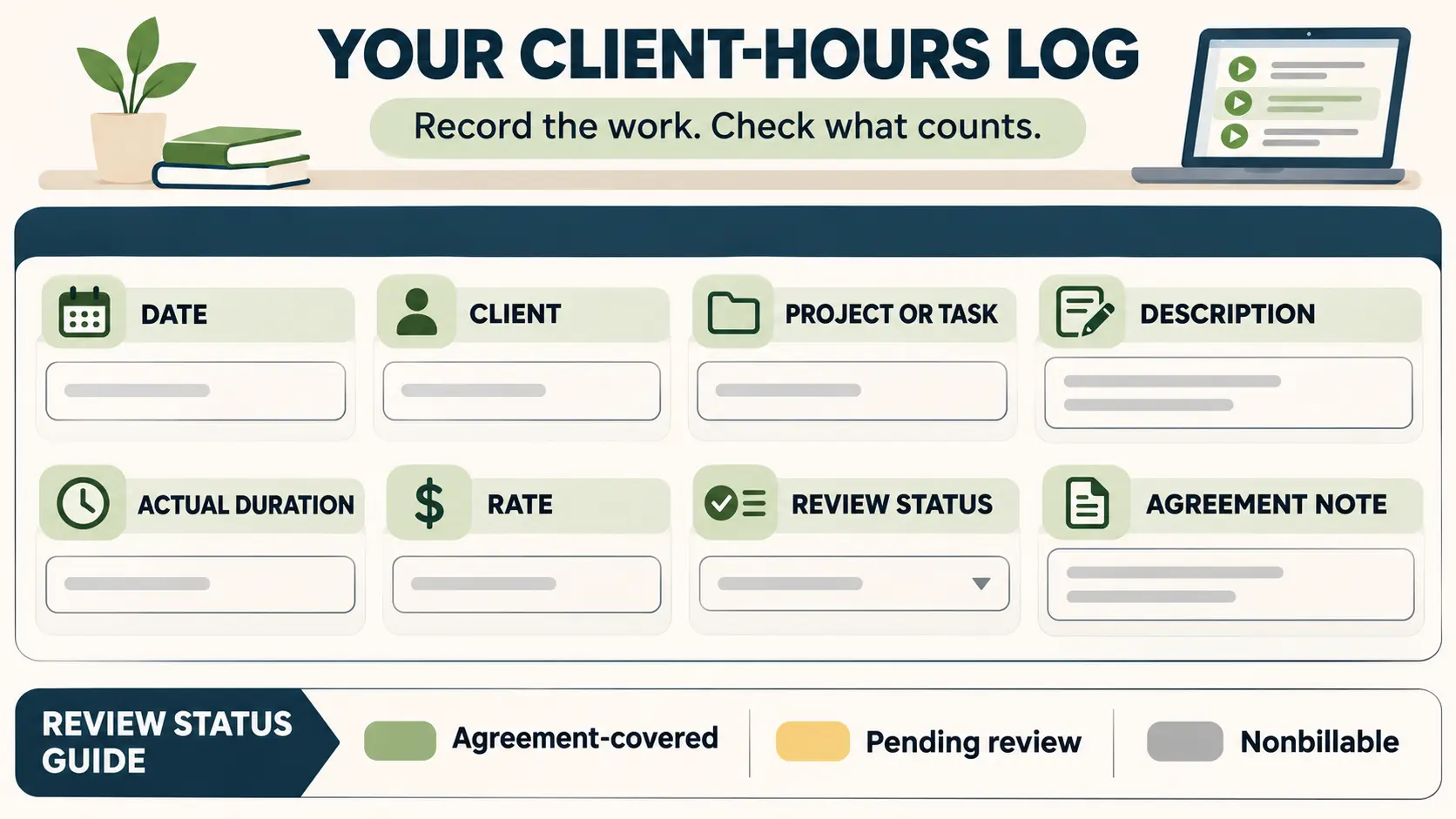
Many time-tracking apps handle basic fields such as duration and project, although the exact options depend on the tool and plan. Toggl’s help page on creating a time entry lists duration, date, start and end times, a description, a project and tags as entry details, plus a task and a billable status, both of which it marks as paid-plan features. Review status and agreement note are GuidePine’s suggested additions, not built-in Toggl fields. In a tracker, you could store them as tags or in the description. In a spreadsheet, they are two more columns. If you use decimal hours, 1.25 hours means 1 hour 15 minutes, not 1 hour 25 minutes; 0.75 hours means 45 minutes. Keep hours-and-minutes and decimal formats distinct.
One detail from that same page is worth remembering. A new entry on a billable project is billable by default, and entries started from autocomplete, a favorite, or an existing billable entry inherit that setting. That’s convenient, but it often sets the flag before you’ve checked anything. Treat it as a starting label.
Keep the status list short. Agreement-covered means the work falls under the terms you agreed with that client. Pending review means something about it is unconfirmed. Nonbillable covers internal work and anything you’ve decided not to charge for. You can add an Invoiced status later if you want to follow that stage, but this guide stops before it.
Capture Work as It Happens, Even When Clients Switch
Switching between clients is where logs go wrong. A timer keeps running, the wrong project stays selected, or a ten-minute reply to one client slips into another client’s hour. A few habits make it easier to track client hours without mixing projects or duplicating time:
- Stop the timer before you move to another client, then start a new entry instead of renaming the old one.
- When a quick message from Client B interrupts work for Client A, give it its own entry, even a short one.
- If you forget to start a timer, log the session as soon as you notice, using the real start and stop times from your notes. The Toggl page above lists manual entry, a calendar view, and a weekly timesheet view among the ways to add entries, and many trackers offer something similar.
- Write the description while the work is fresh. “Kickoff call, scope questions” is enough.
Calendar events, sent emails, and task history can help you investigate sessions you forgot, because they show when something happened. They are evidence for investigating a gap, not a source of invented time. If you can’t reconstruct a gap with something real, flag it for your weekly review instead of filling it. The goal is an accurate record, not a full-looking day, and you should never log a set number of hours because that’s what you meant to work.
Review Each Entry Before It Counts as Chargeable
The review is where tracked time becomes candidate billable time. For each entry, ask:
- Is it filed under the right client and project? A misfiled entry quietly distorts two clients’ totals.
- Does the agreement cover this kind of work? Compare it with the scope in that client’s own agreement, not a general habit.
- Do any caps, minimums or approval rules apply? Some agreements limit hours or require sign-off before extra work. Check the wording rather than assuming.
- Is it a meeting or call? Agreements treat these differently, and some say nothing. If yours is silent, mark the entry Pending review and ask.
- Is it a new request outside the listed work? It stays pending until it is approved in whatever form your agreement requires.
- Does a billing increment apply? Keep the true duration. Round only if your agreement sets an increment, and only as it describes. Never round everything up to a quarter hour out of habit.
- Is anything duplicated? Look for the same session logged twice, or overlapping entries for two clients at the same time.
Pending review is a holding area, not invoice-ready time. Move an entry out of pending when you can document a contractual basis for the classification, such as a relevant clause or an agreed approval, and record it in the Agreement note column. If an extra request is declined and no agreed basis remains to charge, leave it out of this billing summary. If the terms are disputed, seek clarification rather than silently marking the amount owed or waived. Keep unresolved hours out of the ready total.
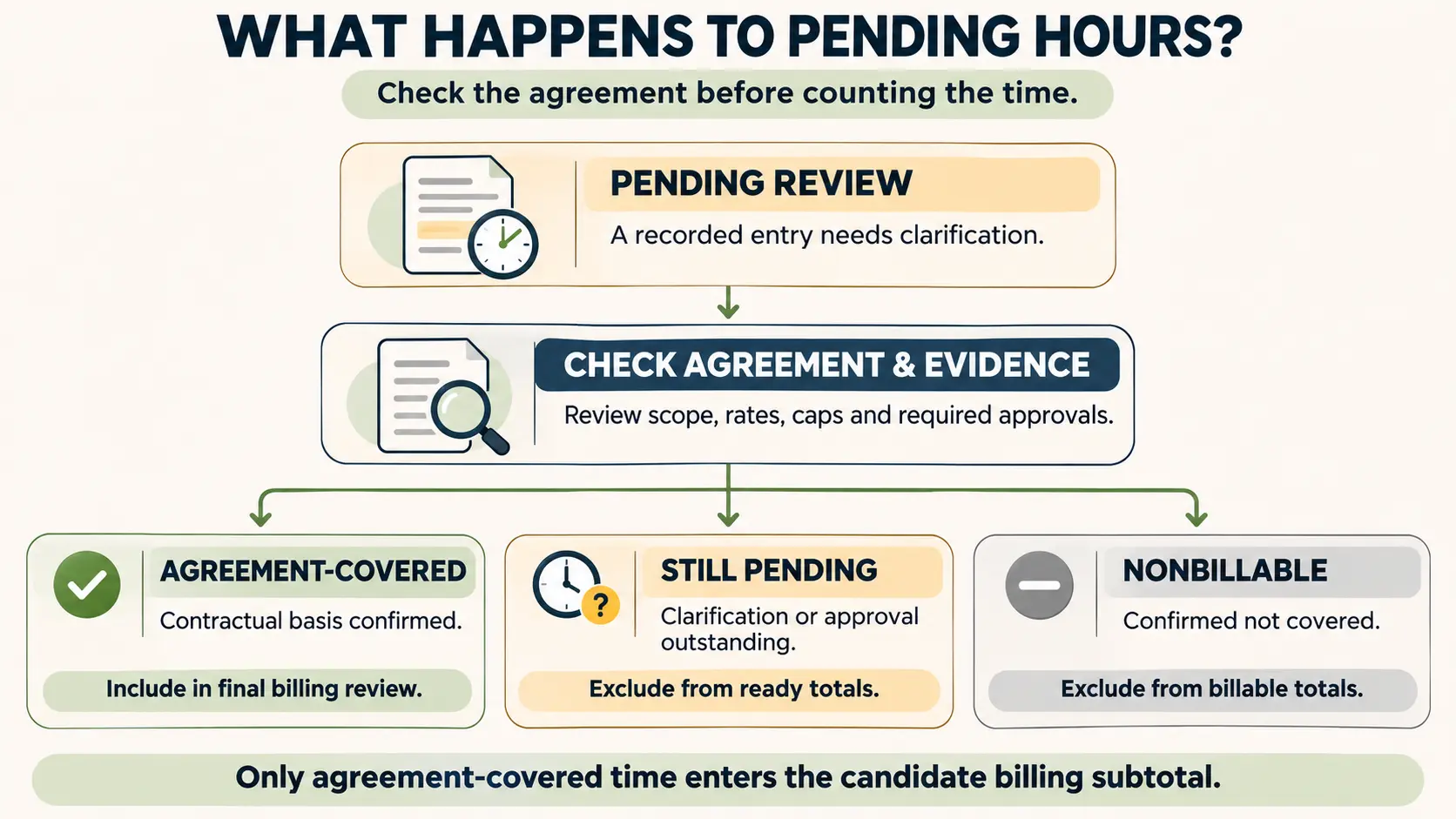
Included revision rounds often cause pending entries. Some agreements set a number of revisions with the work and treat anything beyond that as a change. That is a large topic in design work, and GuidePine’s guide to Time Tracking for Designers: How to Track Hours and Client Revisions covers how to count and approve revision rounds. The point is simpler: an unapproved extra request waits in Pending review, no matter how long it takes.
A Fictional Two-Client Week, Worked Through
The numbers below are invented for teaching. The clients, the $80 and $95 hourly rates, and the agreement terms are all fictional, and the rates aren’t typical for any field. Assume a solo freelancer has two separate hourly engagements: Client A at $80/hour and Client B at $95/hour. Under those fictional agreements, entries marked Agreement-covered are eligible for billing review.
| Date (2026) | Client | Work | Hours | Rate | Review status | Eligible amount |
|---|---|---|---|---|---|---|
| Mon Nov 2 | A | Scope-covered research summary | 1.50 | $80 | Agreement-covered | $120.00 |
| Mon Nov 2 | Internal | Proposal administration | 0.50 | n/a | Nonbillable | $0 |
| Tue Nov 3 | B | Agreed workflow mapping | 2.00 | $95 | Agreement-covered | $190.00 |
| Tue Nov 3 | B | Client kickoff call, eligibility unclear | 0.75 | $95 | Pending review | $0 (pending) |
| Wed Nov 4 | A | Agreed findings memo | 1.25 | $80 | Agreement-covered | $100.00 |
| Thu Nov 5 | B | Agreed implementation notes | 1.50 | $95 | Agreement-covered | $142.50 |
| Fri Nov 6 | Internal | Internal file cleanup | 0.50 | n/a | Nonbillable | $0 |
| Fri Nov 6 | B | Unapproved extra request | 1.00 | $95 | Pending review | $0 (pending) |
| Total | 9.00 | $552.50 |
Here is how the week breaks down:
- 9.00 hours were recorded: 6.25 agreement-covered, 1.75 pending, and 1.00 nonbillable.
- Client A: 1.50 + 1.25 = 2.75 hours at $80, which is $220.00.
- Client B: 2.00 + 1.50 = 3.50 hours at $95, which is $332.50.
- Together, that makes $552.50 eligible for billing review.
All 1.75 pending hours belong to Client B and are excluded from the $552.50 for different reasons. The 0.75-hour kickoff call has unclear eligibility, so we need to review the fictional agreement and possibly ask the client. The 1.00-hour extra request isn’t authorized, so it waits for whatever approval the agreement requires. The 1.00 internal hour is nonbillable and was never a candidate.
The $552.50 is a candidate subtotal for billing review, not profit, received income or automatic evidence that either client owes that sum. It remains subject to the specific agreements, any applicable caps, and a final check.
What changes the picture is evidence. Suppose Client B confirms in writing that kickoff calls are covered at the agreed hourly rate, consistent with the engagement terms, and you save that confirmation in the Agreement note. The 0.75 hour then moves to Agreement-covered. That adds $71.25, lifts covered hours to 7.00, moves the eligible total to $623.75, and drops pending hours to 1.00. The extra request stays pending until it is authorized or dropped. Without that reply, nothing moves. Time spent doesn’t make an entry billable.
A Short Weekly Timesheet Review
Set a recurring weekly review while the details are still fresh. How long it takes depends on how many clients and entries you have.
- Check the log against your real week. Compare entries with your calendar, task list, and sent messages, and look for missing sessions, duplicates, and unexplained gaps. Investigate them rather than guessing.
- Confirm the client and project on every entry. Treat general admin, learning, and marketing as internal unless a specific agreement covers them.
- Compare each candidate entry with that client’s specific agreement: covered work, rate, caps, approval rules, and billing increment.
- Park anything unclear in Pending review and note what you’re waiting on.
- Total eligible hours separately for each client and each agreed rate. Use actual durations, and round only if the agreement says to.
- Write a short handoff summary.
For the fictional week above, that summary would read:
- Ready for billing review: Client A, 2.75 hours at $80, $220.00. Client B, 3.50 hours at $95, $332.50.
- Pending: Client B, 1.75 hours (kickoff call 0.75, extra request 1.00), waiting on an agreement check and a client reply.
- Internal, not billable: 1.00 hour.
That’s where this guide stops. A reviewed time summary is not an invoice. Turning it into an invoice, including any payment terms or applicable taxes, belongs in a separate invoicing guide.
Common Mistakes That Skew a Billing Summary
- Treating the billable flag as permission to charge. The flag is a label, and your agreement decides.
- Logging time under the wrong client during a switch. Stop one entry before starting the next.
- Writing vague descriptions. “Work” tells you nothing when you review the entry a week later.
- Counting overlapping entries twice, or logging the same session for two clients.
- Adding hours to a fixed-fee bill because the timer ran long. Tracked hours inform you, and any extra charge depends on an agreed change.
- Rounding every entry up out of habit. Round only when the agreement sets an increment.
- Filling gaps with invented entries to hit a target or cover a quiet afternoon.
- Folding pending hours into the ready total to make the summary tidier. It hides the questions that still need answers.
A Start-Today Routine
- Set up the log with the eight fields above, in a spreadsheet or your tracker. For step-by-step paper grids and spreadsheet templates without background software, see our guide on manual time tracking.
- Read each client’s agreement once and write one line per client: what’s covered, the rate, and any cap or approval rule.
- Log every session the same day, with a status.
- Block a weekly slot for the review.
- Keep a handoff summary per client with three parts: ready, pending, and internal.
Tracking tells you what happened. The agreement tells you what counts. Keeping those two apart, and giving unresolved items a place to wait, is what makes a billing summary something you can stand behind.
Frequently Asked Questions About Billable Time Tracking
Can One Client Have Different Billable Rates in the Same Week?
Yes, if the agreement sets different rates for different tasks or periods. Keep each entry attached to the agreed rate, rather than multiplying every hour by a single client-wide default. Confirm the task category, rate, and effective dates before preparing that client’s subtotal.
Should I Track Hours on a Fixed-Fee Project?
Yes. Record actual time to understand the effort behind a fixed price, but label it fixed fee and keep it out of the hourly billing subtotal. Extra hours alone don’t increase the agreed price; any additional charge depends on the contract and agreed changes.